
- Follow instruction in this video: https://www.youtube.com/watch?v=YE0-A5bvYt8&t=63
- Open the Outlook app
- Go to Settings
- Tap Signature (under quick settings, or use the search bar for it)
- Paste your copied signature into the appropriate box
- Edit your Name, Job Title, Mobile number and Email
- Tap Save
- Go to the Outlook.com
- Click the Settings cog at the top right of the page
- Click ‘Account’
- Click ‘Signatures’
- Click ‘New Signature’
- Paste your copied signature into the signature box
- Edit your Name, Job Title, Mobile number and Email
- Use the 2 dropdown boxes to set your signature as the one you just created
- Click Save
- Open Outlook
- Select File > Options > Mail
- Click Signatures
- Click New to create a new signature
- Name your signature
- Paste your HTML signature code into the text box and edit your Name/Job Title/Phone/Email
- Click OK
- Define your default signature
- Test your signature by sending yourself an email
This is a more complex 3 part process, as most people will have just added their SCV email via their Gmail app on their phones. Therefore, you will first need to add your SCV email through Gmail on a PC/Mac (i.e. through a web browser), which requires the parts 1&2 below:
Part 1
You will need to use these settings, so please ensure you know your SCV email password before you begin:
- Username: Your SCV email address (e.g. joebloggs@stemcellvet.co.uk)
- SMTP server: smtp.stemcellvet.co.uk
- (SMTP Server) Port: 465
- Your SCV email password (if you don’t have this saved, I might be able to find the initial communication when I sent it to you, but otherwise we will have to reset it)
- Secured Connection: try SSL first, if that doesn’t work try TLS
- Go to your Gmail settings (>>All settings)
- Navigate to the “Accounts and Import” tab,
- Click “Add another email address,”
- Enter the details of your new account with the settings above, and make sure to uncheck the “Treat as an alias” box before saving/proceeding.
- Click the link in the email you will be sent to your SCV email address to confirm the setup (you can login into your email via stackmail.com with your email address and password if you haven’t yet setup your SCV email on any other email app).
Part 2
You will need to use these settings:
- Username: Your SCV email address
- Your SCV email password
- POP3 server: pop3.stemcellvet.co.uk
- (POP3 Server) Port: 995
- Click Settings in the top right (>>All settings)
- Click the Accounts and import tab
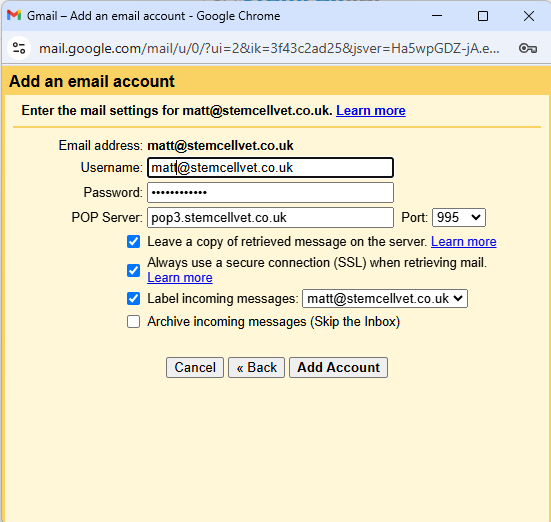
- In the “Check mail from other accounts” section, click Add a mail account
- Enter the email address of the other account
- Click Next
- Follow the steps on the screen
- Make sure you have the first 3 tick boxes CHECKED as shown in the image below (obviously also use your own email address and not matt@)
- Click Add Account
Be warned: this will download ALL your emails to your Gmail account, so you could get LOADS of notifications as the email arrives in your Gmail inbox.
Part 3 – adding your email signature to Gmail
- Click the Settings gear icon
- Select ‘See all settings’
- Scroll down to the Signature section
- Click Create new
- Name your signature
- Open the signature editor
- Copy and paste your HTML signature into the text box
- Edit your Name, Job Title, Mobile number and Email
- Under ‘Signature Defaults’ select your SCV email address and select the signature you just saved for the 2 drop down boxes below that.
- Scroll to the bottom of the page and click ‘Save Changes’
Currently, it is not possible to add an HTML signature (one with images and links etc) to the Gmail app on your phone, when your SCV email is a connected account. You can use the PC/Mac browser version of Gmail to add an HTML signature (see the instructions under GMail (on PC/Mac).
The best you can do on your phone Gmail app is to manually add your own plain text email signature (not recommended – see GMail (on PC/Mac) instead)
- Open the Gmail app
- Tap the Menu button in the top left
- Scroll down and tap Settings
- Choose the Google Account you want to add a signature to
- Tap Mobile Signature
- Enter your signature in the text box
- Tap OK
- Open the Mail app
- Select Mail > Preferences > Signatures
- Select the + button to add a new signature
- In the right pane, paste your HTML signature and edit your Name/Job Title/Phone/Email
- Name your signature
- Select the email account you want to use the signature for
- Close the Preferences window
- Quit Apple Mail
To add your copied email signature to Stem Cell Vet webmail (a.k.a Stackmail) follow these instructions:
- Login to your webmail
- Click ‘Settings’
- Click ‘Identities’
- Click your identity (will be your email address shown on the right of the page – see image 1 below)
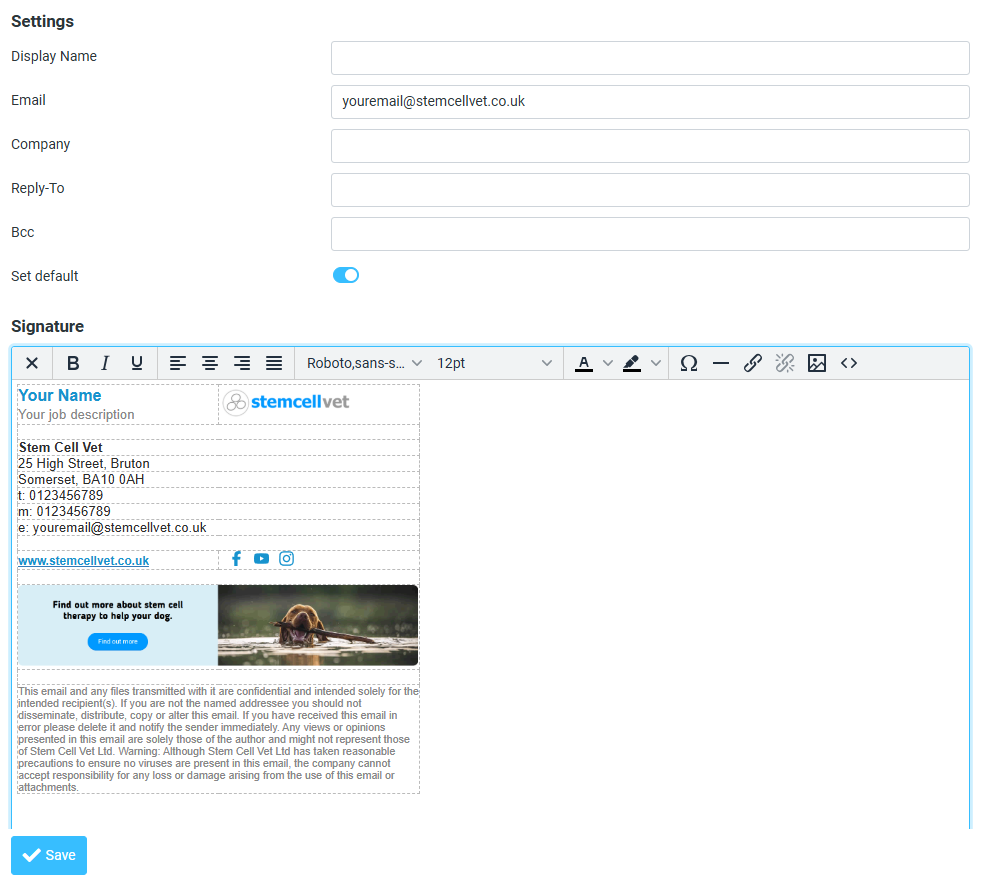
- Under ‘Signature’ click the small image icon in the top-left of the grey rectangle (see image 2) to switch to an HTML signature
- Paste your copied signature into the Signature box (see image 3)
- Edit your Name, Job Description, Mobile number and Email in the email signature itself
- Click the ‘Save’ button
- To ensure that the signature works, you may need to adjust another setting under Settings>>Preferences>>Composing Messages>>Compose HTML Messages, and change the dropdown option there to ‘Always’.
Image 1
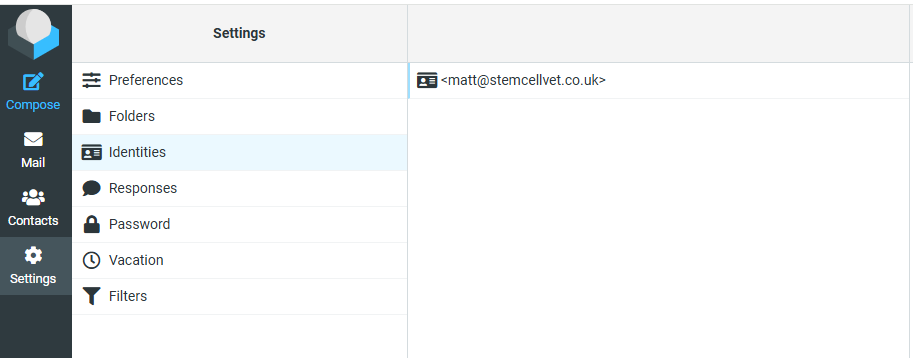
Image 2

Image 3
- Open Thunderbird
- Click the hamburger menu (Windows & Linux) or select Thunderbird in the menu bar (macOS)
- Open Account Settings
- Select the account you want to use the signature with
- Click the Use HTML checkbox
- Paste your HTML signature into the Signature text field and edit your Name/Job Title/Phone/Email
- Click OK to save changes
- Compose a new message
- Your signature should appear in the message compose window